
iPhone software explained
iOS 26 Slow or Hot? Apple’s 3 Essential Checks
Your iPhone may be doing three extra jobs after a major update. Check the evidence on the phone before blaming one visual effect.
If “iOS 26 slow” describes the problem that brought you here, the symptom can be real without the first explanation being right. A widely shared social post points to Liquid Glass, the translucent interface that reflects, refracts, blurs, and reacts to content. Apple confirms that Liquid Glass changes the way the interface is rendered. Apple does not say that Liquid Glass is the single cause of every post-update slowdown or warm phone.
Apple’s own support material starts somewhere more measurable. After a major update, the iPhone can continue indexing data and files for search, downloading new assets, and updating apps. Those background jobs can temporarily affect battery life and thermal performance. Some new features may also require additional device resources. The useful diagnosis is therefore a sequence, not a guess.
Want the quick version next time?
Follow @besttechinsight for fast, source-backed explanations of new products, chips, AI, robots, EVs, and science. The detailed guide stays here on BTI.
Checked July 25, 2026: This guide uses Apple’s current iOS 26 update, battery, temperature, accessibility, and developer documentation. It is not an independent BTI benchmark of iPhone 13, 14, 15, 16, or 17 hardware. Apple can change software behavior and support wording in later updates.
iOS 26 slow or hot: the fast answer
Open Settings > Battery. If you see Ongoing iOS Update, the phone is still completing update work. Apple says battery life and thermal performance should return to normal when that activity finishes, and its public advice is to wait a few days before judging battery life after an update.
If that label is gone, inspect the Daily Usage chart and App and System Activity Usage. A single app, high brightness, weak signal, background activity, notifications, battery age, direct sun, wireless charging, camera work, games, or streaming can all change the result. Liquid Glass is one part of the new interface, but the phone already exposes stronger clues than a social caption can.
If the interface itself feels too animated or too transparent, Apple provides Tinted Liquid Glass, Reduce Transparency, Increased Contrast, and Reduce Motion. Those are useful comfort and legibility controls. Apple does not promise that switching them will produce a specific speed, temperature, or battery gain, so BTI does not present them as a benchmarked fix.
Your iPhone is doing three extra jobs after iOS 26
1. Rebuilding the search map
Indexing is the work that makes local search useful. The phone examines data and files so a later search can find a message, photo, document, app result, or setting quickly. A major system update can require parts of that local map to be rebuilt. The work happens in the background, which is why the phone can feel different even after the install screen has disappeared.
2. Downloading the pieces the update needs
The operating system package is not always the last download. Apple says the device may continue downloading new assets after the update. Those assets can support interface elements, voices, models, media, or other system experiences. The exact work varies by device, region, enabled feature, and the version installed, so there is no honest universal countdown.
3. Updating and settling apps
Apps may need updates for the new system, and the phone may perform setup work around them. An app can also keep using location, network, audio, or notifications in the background. That is why Settings > Battery separates App and System Activity Usage. It lets you see whether the operating system is still finishing an update or whether one app is doing most of the work.
These jobs explain why a phone can be warm without being unsafe. Apple says setup, restore, major software updates, wireless charging, processor-intensive apps, camera use, and high-quality video can all make a device feel warmer. If no temperature warning appears, the phone’s protection system has not crossed the warning threshold described in Apple’s support article.
What Liquid Glass actually adds
Liquid Glass is not just a static translucent color. Apple describes it as a dynamic material for controls and navigation. The regular version can blur and adjust the luminosity of whatever sits behind it. It can react to scrolling, content, light and dark backgrounds, motion, and system accessibility choices. Apple also says the material reflects and refracts content in real time.
That establishes an important fact: the interface performs visual work. It does not establish the larger claim that this one material explains every slow, warm, or fast-draining iPhone after iOS 26. Apple’s performance page uses broader language: some new features may require additional resources, while background setup can temporarily affect battery and thermal performance. No Apple source in this guide assigns a measured percentage of CPU, GPU, battery, or heat to Liquid Glass on each supported model.
The distinction matters because it changes the advice. If the problem is temporary update work, wait and recheck. If one app dominates the Battery screen, investigate that app. If battery health says Service, treat battery condition as its own issue. If the user experience is uncomfortable, change the visual settings. One explanation does not fit every signal.
The three-minute iOS 26 check
- Check Software Update. Open Settings > General > Software Update and read the version Apple currently offers for your phone. Minor releases can include bug fixes and security updates. Do not install while you need the phone for an urgent task.
- Check the Battery Insight. Open Settings > Battery and look above Daily Usage for Ongoing iOS Update or Ongoing Device Setup. If it appears, the phone is giving you a direct reason to wait.
- Compare today with the last seven days. Daily Usage shows whether today’s consumption is higher, lower, or similar. Tap through to App and System Activity Usage instead of relying on memory alone.
- Inspect the largest contributor. Look for background activity, location, notifications, weak signal, display brightness, or another visible cause. Change the setting tied to that cause, not every setting at once.
- Check battery health. On iPhone 15 and later, open Settings > Battery > Battery Health. On iPhone 14 and earlier, use Battery Health & Charging. Apple says a Service label is a reason to consider battery service to restore performance and capacity.
- Recheck after a few days. Use roughly similar days when possible. A phone used for navigation, video, gaming, weak-signal travel, or wireless charging is not a controlled comparison with a quiet day at home.
Settings that change the experience
Choose Clear or Tinted Liquid Glass
On current iOS 26 documentation, Apple places this control under Settings > Display & Brightness > Liquid Glass. Clear is more transparent. Tinted increases opacity and contrast. This is a display preference, not a published performance guarantee.
Reduce transparency or increase contrast
Accessibility > Display & Text Size includes controls for transparency and contrast. Apple notes that these settings affect the available Liquid Glass look. They can make controls easier to read when the content underneath is visually busy.
Reduce motion
Accessibility > Motion > Reduce Motion changes screen transitions and the fluid morphing effects associated with Liquid Glass. Use it if movement is distracting or uncomfortable. Apple frames this as an accessibility and motion preference, not as a promised battery or speed benchmark.
Use Low Power Mode when the goal is battery life
Low Power Mode reduces or disables several energy-using behaviors, including background app refresh and some visual effects. It is a broader battery tool than changing one appearance preference. Apple documents it under Settings > Battery > Power Mode.
Read the signal, not the rumor
| What you can see | What it can mean | What to do next |
|---|---|---|
| Ongoing iOS Update appears in Settings > Battery | The phone is still finishing update work in the background. | Give it power, Wi-Fi, and a few days, then compare the Daily Usage chart again. |
| One app dominates App and System Activity Usage | That app, its background activity, location use, notifications, or network conditions may be the larger load. | Update the app, inspect its usage detail, and change only the setting tied to the visible activity. |
| Battery Health shows Service | Battery age can reduce capacity and peak performance independently of the new interface. | Follow Apple’s service guidance instead of treating every symptom as a Liquid Glass problem. |
| The phone shows a temperature warning | The device has moved beyond ordinary warmth and is protecting its components. | Stop demanding work, move it away from heat or direct sun, and let it cool naturally. |
| The phone is comfortable, but the interface feels too busy | Motion, translucency, or contrast may be the user-experience problem rather than sustained thermal load. | Try Tinted Liquid Glass, Reduce Transparency, Increased Contrast, or Reduce Motion for comfort and legibility. |
When warmth becomes a different problem
Ordinary warmth during an update is not the same as a temperature warning. Apple says iPhone and iPad are designed for ambient use between 32 and 95 degrees Fahrenheit, or 0 and 35 degrees Celsius. Hot cars, direct sunlight, navigation, long camera use, games, streaming, and charging can add heat independently of iOS 26.
If the phone exceeds its normal internal range, Apple may slow or stop charging, dim the display, reduce cellular power, disable the flash, lower frame rates, or increase processing time. A temperature warning means the phone needs to cool. Stop the demanding activity, move it away from heat and direct sun, and let it cool naturally. Do not put it in a refrigerator, freezer, water, or against ice.
If the device stays unusually warm, slow, or unstable after update work is finished and the latest public release is installed, use Apple Support or an authorized service provider. Persistent symptoms deserve device-specific diagnosis. This article cannot inspect a battery, logic board, app crash log, or thermal sensor remotely.
Frequently asked questions
Is Liquid Glass making my iPhone slow?
That is not proven by the Apple sources in this guide. Liquid Glass performs dynamic visual work, and Apple says some new features can require extra resources. Apple also identifies post-update indexing, asset downloads, app updates, battery condition, temperature, app activity, brightness, and signal as other possible contributors. Check Settings > Battery before assigning one cause.
Why is my iPhone warm after installing iOS 26?
Apple says a major update can continue indexing data, downloading assets, and updating apps in the background. That can temporarily affect battery life and thermal performance. Settings > Battery may show Ongoing iOS Update while the work continues.
How long should I wait after an iOS update?
Apple’s battery guidance says to wait a few days and check again. The exact time varies with the phone, data, apps, connection, charging, and enabled features. The Battery Insight is more useful than an invented universal hour count.
Will Tinted Liquid Glass or Reduce Motion make iOS 26 faster?
Apple documents those controls for appearance, contrast, and motion. It does not promise a specific speed, heat, or battery improvement from them. They may make the interface more comfortable, but BTI does not label them a measured performance fix.
What should I do if the iPhone shows a temperature warning?
Stop demanding work, move the phone to a cooler place away from direct sunlight, and let it cool naturally. Apple says charging or features may pause while the device protects itself. Seek support if the warning returns without an obvious heat source.
Editorial and affiliate disclosure
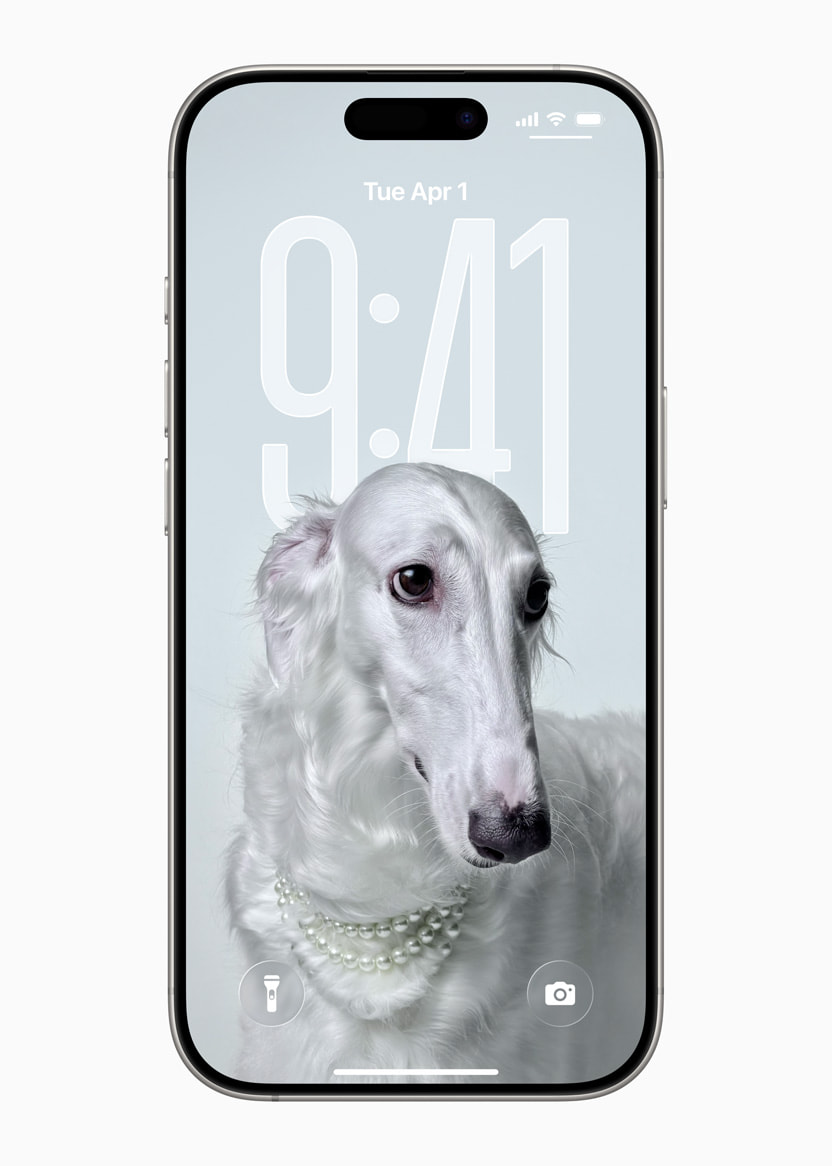
This guide contains no affiliate links and makes no hands-on, benchmark, price, rating, review, availability, or repair-diagnosis claim. Official Apple imagery is used as editorial context with attribution in the media record. BTI independently wrote the explanation and receives no payment from Apple or the competitor account referenced by the reporting workflow.
Sources and evidence boundaries
BTI uses Apple’s current public support, developer, and newsroom material for the technical claims below. A public competitor post supplied the topic signal and swipe mechanic only. It is not treated as technical proof, and its wording or media is not reused.
- Apple: About iOS 26 Updates: Apple’s current release page documents Liquid Glass, current iOS 26 updates, and the general performance and battery boundary.
- Apple: About Apple software updates: Apple says major updates can temporarily affect battery life and thermal performance while the device indexes data, downloads assets, and updates apps.
- Apple: If the battery drains too quickly: Apple documents Battery Insights, the Ongoing iOS Update label, Daily Usage, app and system activity, battery health, and the advice to wait a few days after an update.
- Apple: If iPhone gets too hot or too cold: Apple separates normal warmth during a major update from temperature warnings and protective performance changes.
- Apple: Adjust display and Liquid Glass settings: Apple documents Clear and Tinted Liquid Glass plus the relationship to Reduce Transparency and Increased Contrast.
- Apple: Customize onscreen motion: Apple documents Reduce Motion and identifies the fluid morphing effects of Liquid Glass as one of the motion experiences it changes.
- Apple Human Interface Guidelines: Materials: Apple describes Liquid Glass as a dynamic material that can blur, adjust luminosity, react to content, and adapt to accessibility settings.
- Apple Newsroom: iOS 26 and the new software design: Apple’s launch material provides the official iOS 26 interface imagery used as editorial context in this guide.
The BTI takeaway
Start with the signal your iPhone can show you. An Ongoing iOS Update label points to temporary background work. A dominant app, a Service message, or a temperature warning points somewhere else. Change Liquid Glass, transparency, contrast, or motion when those visuals are the problem, but do not promise yourself a measured speed gain that Apple has not published.