
Apple software update guide
iOS 27 Public Beta: The 30-Second Check Before You Install
The simple version: a spare iPhone is the better first home for beta software. Your main phone deserves a backup, a compatibility check, and a recovery plan before you choose early access.
The iOS 27 public beta is an early look at Apple’s next iPhone software. The useful question is not whether the new features look interesting. It is whether the iPhone in your hand is the right device for pre-release software.
Apple’s own beta FAQ says pre-release software may contain errors or may not work as well as finished software. Apple recommends a backup. It also strongly recommends a second device that is not critical for work. That turns a vague yes-or-no debate into a practical device choice.
Want the quick version next time?
Follow @besttechinsight for fast, source-backed explanations of new products, chips, AI, robots, EVs, and science. The detailed guide stays here on BTI.
Updated July 14, 2026: This guide covers the first iOS 27 public-beta window and Apple’s current device list. It also explains the difference between installing iOS 27 and getting every Siri AI or Apple Intelligence feature. Beta details can change by build. The linked Apple pages remain the final source for the version offered to your Apple Account and device.
iOS 27 public beta quick answer
If you have a compatible spare iPhone, that is the most comfortable place to explore iOS 27 early. You can try the interface and test the apps you care about. You can also send feedback without making every call, payment, login code, or work message depend on a beta build.
If your compatible iPhone is also your only essential phone, following the beta while keeping the current shipping iOS is a completely useful choice. You still learn which features matter, which bugs affect real people, and which apps need updates. Then you can install a later beta or the fall release with better evidence.
For developers and careful testers, the beta can be useful when the test has one clear job. That job may be checking an app, an accessory, a managed phone, or a feature tied to a product plan. Start with a named test and a recent archived backup. Leave enough time to recover, and use a device that can be offline while it is restored.
Main iPhone or spare iPhone?
| Your situation | Practical choice | Why it fits |
|---|---|---|
| A spare compatible iPhone | Best first place to explore the beta | Apple recommends beta software on a secondary, non-critical device. |
| Your only phone for work, travel, health, or authentication | Keep the shipping release while you follow beta reports | A stable daily phone is more valuable than early access when one bug can interrupt an essential task. |
| You test apps or need an iOS 27 workflow now | Use a backed-up test device with a written recovery plan | The beta is useful when the testing job is specific and the device can be restored without disrupting daily life. |
| Your iPhone supports iOS 27 but not every Apple Intelligence feature | Separate OS compatibility from AI-feature eligibility | An iPhone can run iOS 27 while newer Siri AI and Apple Intelligence features require a narrower hardware list. |
Compatibility answers only one question: can this model install iOS 27? It does not cover every app or accessory. Your banking app, work VPN, car key, health device, or login app may matter more than the feature list. Your own daily needs are the better test.
The 30-second check before you install
1. Pick the device
Start with the phone’s role. A spare device is a place to learn. A main phone is part of daily life. Give key tasks more weight than curiosity. Those tasks may include work, travel, health, money, family contact, or account access.
2. Check the exact compatibility layer
Apple’s iOS 27 page lists iPhone 11 and newer families. It also lists iPhone SE (2nd generation and later). Apple’s full list names each Pro, Plus, mini, Air, and newer model. Check the exact model in Settings instead of relying on a broad product name.
Next, check the feature you want. Apple’s June announcement lists Apple Intelligence and Siri AI for iPhone 16 models or later. It also lists iPhone 15 Pro and iPhone 15 Pro Max. An older compatible iPhone can run iOS 27 without getting every headline AI feature. OS support and AI support are two different rows.
3. Create a recovery point
Apple recommends a backup before beta software. A current backup protects your data. An archived computer backup also keeps a recovery point from before the beta. Apple explains how to create and archive that backup in Finder or the Apple Devices app.
If Health and Activity data matters, Apple says a local backup needs encryption to include it. Store the password in a safe place. Apple warns that you cannot restore an encrypted backup without its password.
4. Read the exit path once
Turning off Beta Updates stops future beta builds. It does not replace the beta already on the phone. Apple’s removal guide says an immediate return to public iOS can require an erase and restore. A backup made on a newer beta may also fail to restore to an older shipping version.
This is why the pre-beta backup matters. The recovery plan is not meant to make the beta sound frightening. It simply turns recovery from a surprise into a known process.
How the iOS 27 public-beta path works
Apple’s public program uses the Apple Account on the eligible device. When the beta is offered, it appears under Settings, General, Software Update, and Beta Updates. Labels and builds can change. Use Apple’s current beta page instead of an unofficial profile or download.
Start with reliable power and Wi-Fi. Make sure the phone has room for the download and install. Leave time for app updates after the phone restarts. Space needs vary by phone and build, so this guide does not invent one free-space number.
After the update, test the few tasks that make the phone essential. Open your login app, bank, camera, calls, messages, car link, work apps, and health tools. A short written list is more useful than trying every feature at random.
What is actually new in iOS 27?
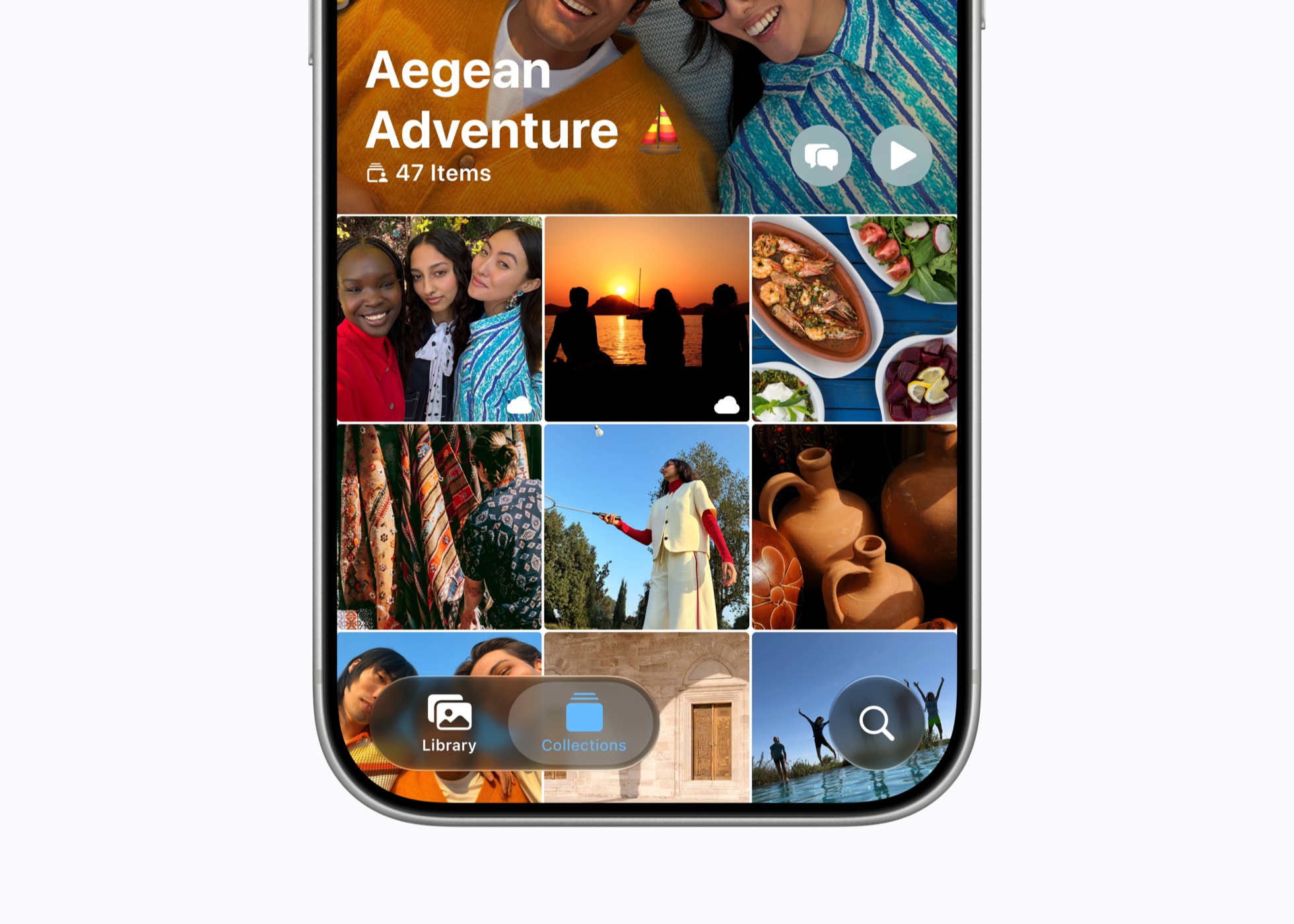
Apple’s iOS 27 material highlights Apple Intelligence, Siri AI, new family controls, speed work, and design changes. It also shows shared albums, health updates, AirPods custom EQ, and a new Maps Flyover view. Some features depend on the phone, language, region, account, accessory, or rollout date.
Treat the beta as a moving preview, not a finished review unit. Apple publishes release notes with known issues, fixes, and workarounds. Those notes change by build. One early result cannot prove how the final release will work for everyone.
Your best first test is the feature that may change a daily habit. For Siri AI, check the phone and language rules. For family controls, test the family flow. For app speed, repeat the same simple actions and keep Apple’s test results separate from your own.
BTI methodology and evidence boundary
BTI built this guide from Apple’s beta FAQ, iOS 27 page, Newsroom post, release notes, and support pages. Public competitor data only explains why a short install-decision Reel is timely. It does not prove that the format will create reach or followers for BTI.
BTI did not install the beta on every supported iPhone. We did not test every app, accessory, or battery. We also did not check each account’s rollout or repeat Apple’s speed tests. The advice is narrower: choose the phone by its role, keep a pre-beta recovery point, and check the feature you want.
This page contains no affiliate links because the immediate decision is software readiness, not a product purchase. A phone recommendation would require a separate buyer comparison with current product data, visible disclosure, and tracked outbound links.
iOS 27 public beta FAQ
Is the iOS 27 public beta the finished iOS 27 release?
No. It is pre-release software used for testing and feedback. Apple says beta software may contain errors or inaccuracies and may not perform like commercially released software.
Which iPhones support iOS 27?
Apple’s compatibility list includes iPhone 11 and newer model families plus iPhone SE (2nd generation and later). Check Apple’s current iOS 27 page for the complete model-by-model list.
Does every iOS 27-compatible iPhone get Siri AI?
No. Apple lists narrower hardware requirements for Apple Intelligence and Siri AI: iPhone 16 models or later, plus iPhone 15 Pro and iPhone 15 Pro Max. Feature availability can also vary by language and region.
Can I turn the beta off later?
You can turn off future Beta Updates in Software Update. Returning immediately to the current public iOS can require erasing and restoring the device, so read Apple’s current removal guide before installing.
Is an iCloud backup enough?
An iCloud backup is useful, but Apple warns that a backup made on a newer beta may not restore to an older shipping version. A pre-beta computer backup that you archive gives you a clearer recovery point. Choose the backup method that fits your data and recovery plan.
Sources for this iOS 27 public beta guide
- Apple Beta Software Program: Apple’s public program is the official enrollment surface for pre-release Apple software.
- Apple Beta Software Program FAQ: Apple explains that beta software can contain errors, recommends a backup, and strongly recommends a secondary non-production device.
- Apple iOS 27 overview and compatibility list: Apple lists iOS 27 features and compatible iPhone models, starting with iPhone 11 and iPhone SE (2nd generation) in the oldest supported groups.
- Apple iOS 27 and Siri AI announcement: Apple separates broad iOS 27 compatibility from the narrower device requirements for Apple Intelligence and Siri AI.
- Apple iOS 27 beta release notes: Apple’s developer notes document current beta fixes, known issues, and changing behavior.
- Apple beta removal and restore guidance: Apple explains how to stop beta updates and that returning immediately to the current shipping iOS can require erasing and restoring the device.
- Apple iPhone backup overview: Apple compares iCloud and computer backup paths before a software change.
- Apple local backup instructions: Apple documents Finder backup steps and encrypted local backups for Health and Activity data.
- Apple backup management and archive instructions: Apple documents how to locate, manage, and archive a computer backup so a later backup does not replace the pre-beta recovery point.
BTI final take
The iOS 27 public beta is most useful when curiosity has a safe place to land. A compatible spare iPhone gives you room to explore. A main iPhone can stay on the shipping release while you learn from each beta build. Both choices keep you informed.
Remember the four-part check: choose the device, check the feature, create the recovery point, and read the exit path. That is a calmer way to try new software than treating every beta as an automatic upgrade.